
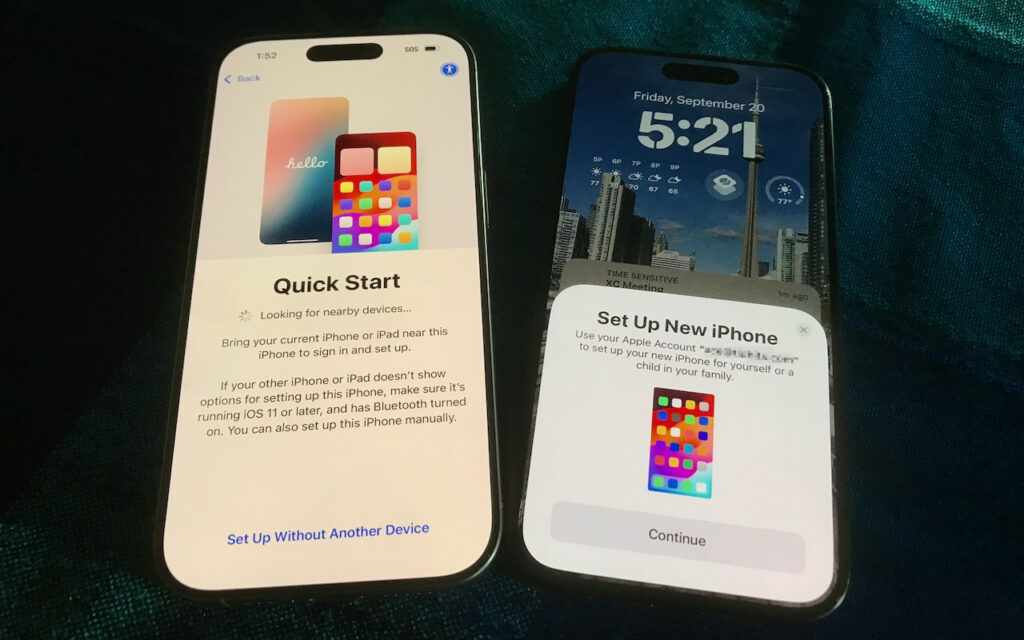
Are you considering getting one of the new iPhone 17 models? While it’s always tempting to unbox a new device and dive right in, taking a methodical approach to setup will save you from potential frustrations down the road. When you’re ready to transfer your data—and, for many people, that means much of your digital life—to the new iPhone, follow these step-by-step instructions. For visual learners, Apple provides helpful setup videos as well.
- Before anything else, ensure that both your current iPhone and Apple Watch (if you have one) are running the latest versions of iOS and watchOS. Remember that these updates can take some time to install, so don’t leave them for the last minute.
- Ensure you have your login details ready: you’ll need your iPhone and Apple Watch passcodes, along with your Apple Account credentials.
- Back up your old iPhone to iCloud or your Mac. If you choose to back up to a Mac, make sure you encrypt the backup; otherwise, it won’t include passwords, Wi-Fi settings, browsing history, Health data, and call history. For safety, consider backing up to both. We recommend iCloud backups because they are more straightforward and avoid issues like unreliable USB cables. If you don’t typically back up to iCloud, Apple offers temporary iCloud storage for 21 days when transferring to a new iPhone. To start an iCloud backup, go to Settings > Your Name > iCloud > iCloud Backup and tap Back Up Now.
- If you have an Apple Watch, you can transfer it to the new iPhone during the setup process. If the automatic transfer doesn’t work for some reason, you can unpair the Apple Watch manually from the old iPhone and pair it again to the new one. If you choose the manual route with a cellular Apple Watch, you’ll be prompted to keep or remove your cellular plan. Assuming that you intend to keep your Apple Watch and re-pair it with your new iPhone, be sure to keep the plan.
- Your phone number should transfer automatically during activation if you ordered your new iPhone through Apple and linked it to your cellular carrier account during purchase. The same is true if you bought directly from your carrier. iPhones sold in the US rely exclusively on eSIM, and rumors suggest the iPhone 17 will also go eSIM-only in countries other than China, meaning that transferring the SIM card from the old iPhone to the new one should be a thing of the past for most people.
- Transfer your data, settings, apps, and purchased content using one of these three methods. None of them will be quick, despite the first one’s name, so start the transfer only when you have plenty of time.
- Quick Start: With the Quick Start feature, content from your old iPhone copies directly to your new one. We recommend this method because it’s more likely to preserve app logins, which is less certain when restoring from an iCloud backup. Make sure both iPhones are charged above 50% or plugged into power before starting. Put your iPhones next to each other, use the old iPhone to scan the animation on the new one, and then follow the remaining steps that appear.
- iCloud: This method allows the new iPhone to download your content from the old iPhone’s iCloud backup, making it ideal if the old iPhone is not available. After connecting to a Wi-Fi network on the new iPhone and tapping the From iCloud Backup button, select the correct backup—probably the most recent one you just created. Keep your new iPhone plugged into power to ensure all your content syncs during this process.
- Finder or iTunes: Use this method to restore your old iPhone’s data from a backup saved to your Mac. Connect your new iPhone to your Mac using an appropriate cable. Then, open a Finder window (or iTunes if your Mac is still running macOS 10.14 Mojave or earlier) and select your device in the sidebar on the left. Next, click Restore Backup and select the correct backup—likely the newest one.
- Complete post-transfer tasks. Some app data needs to sync, so open the Mail, Contacts, and Calendar apps to check for your information; it may take a few minutes to populate. Verify you can make and receive calls. If necessary, pair your Apple Watch with the new iPhone. Also, pair your Bluetooth accessories—including AirPods—with your new device. Apps might ask for notification permissions again, and you might need to download content and in-app purchases.
- If you use two-factor authentication with an app like 1Password, Authy, or Google Authenticator, confirm that your codes appear on the new iPhone. Many apps now sync codes automatically once you log in, but don’t assume—verify before wiping the old phone.
- Finally, if needed, set up single sign-on for work or school. Most enterprise authentication systems now support automatic device migration, but check with your IT department about their specific requirements. For systems that require manual activation, you’ll need to activate your new iPhone and deactivate the old one. Go to the standard single sign-in login page for your organization, find the link to manage your logins, click it, and follow the instructions.
Although Apple works hard to make transferring from an old iPhone to a new one as smooth as possible, some things may not transfer perfectly. We strongly recommend keeping your old iPhone for a week or so to ensure the new one can do everything the old one did. During that time, thoroughly test the new iPhone, checking each app you need.
(Featured image by Adam Engst)